HOW TO SCENARIOS:
Below are several how to scenarios, showing examples of how to perform certain tasks on the City Interactive Map.- Scenario #1 - How do I search for an address, and view the install date of a water main at that location?
- Scenario #2 - How do I search for an intersection, and view the Street View for that area?
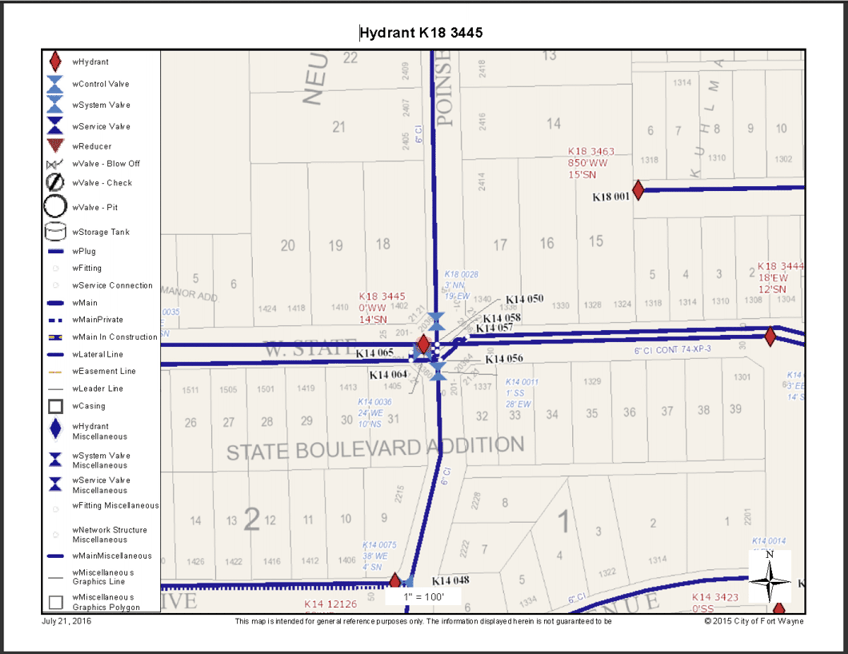
- Scenario #3 - How do I search for a hydrant and print a map of the water facilities in that area?
- Scenario #4 - How do I search for a street and identify the address points in that area, along with the water service area at that location?
- Scenario #5 - How do I perform a Water - Isolation Trace, and export the customer data for that extent?
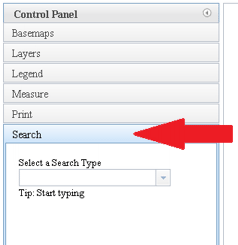
Select the Search tab.
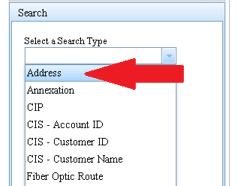
- Pull down the Select a Search Type drop-down, and select Address from the list.
Type the address in the box where it says Enter an Address. This example will use 201 E Main St.
Note: Only the address number and the first 2 or 3 letters of the street name are recommended here. This allows you to pick from a short list of search results, thereby minimizing spelling errors.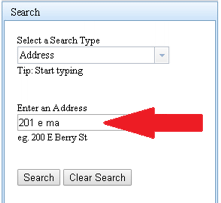
Select the Search button. If one result was returned, this will zoom the map to that location.
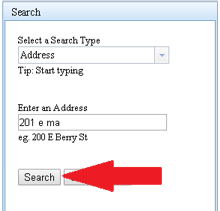
If multiple results were returned, select your address from the Search Results table. This will zoom the map to that location.

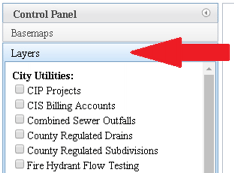
Select the Layers tab.
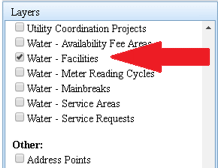
Check the box next to the Water - Facilities layer to turn on the water mains. Water mains are included in water facilities.
Click on the water main closest to that address and view the Install Date information in the popup.
You can see this water main was installed in 1910.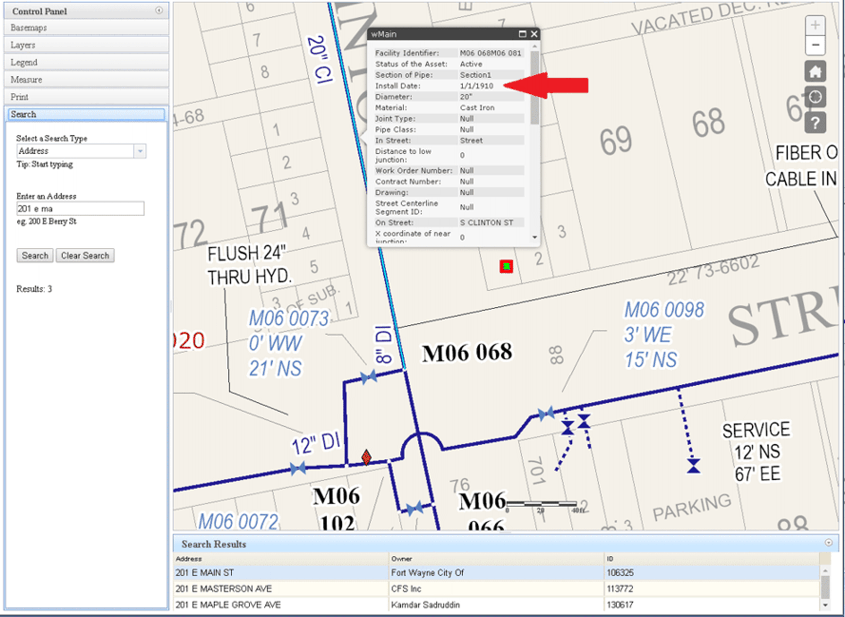
Select the Search tab.
Pull down the Select a Search Type drop-down, and select Intersection from the list.
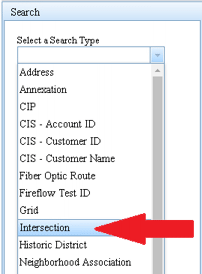
Enter your intersection in the text box. This example will use E Main St & S Clinton St.
Note: Only one street name, or a portion thereof, is recommended here. This allows you to pick from a short list of search results, thereby minimizing spelling errors.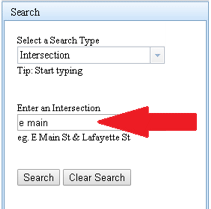
Select the Search button. If one result was returned, this will zoom the map to that location.
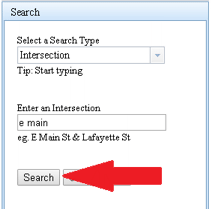
If multiple results were returned, select your intersection from the Search Results table. This will zoom the map to that location.
Note: You can select the Intersection field header to sort the list for ease of selection.
Select the Layers tab.
Check the box next to the Parcels layer to turn on the parcel layer.
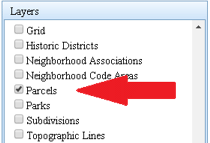
Click on the Parcel on the SE corner of that intersection. This will display the popup box, showing information about that parcel.
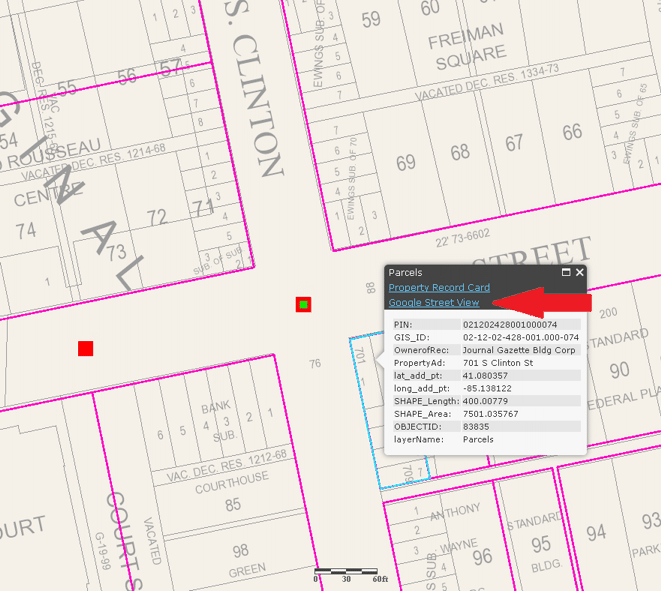
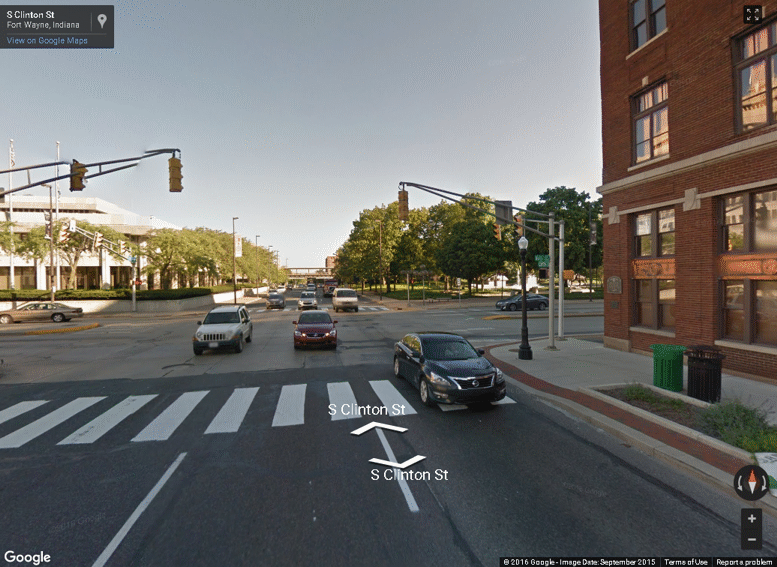
Click on the Google Street View hyperlink in the popup box.This will open a new tab, displaying the Google Street View of that intersection.
Select the Search tab.
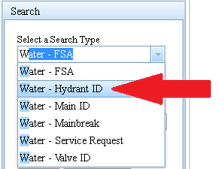
Pull down the Select a Search Type drop-down, and type W to filter the list to water types, then select Water - Hydrant ID from the list.
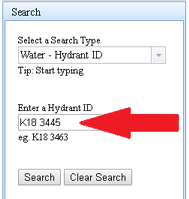
Type the hydrant ID in the box where it says Enter a Hydrant ID. This example will use K18 3445.
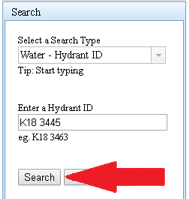
Select the Search button. This will zoom the map to that location.
Select the Layers tab.
Check the box next to the Water - Facilities layer to turn on the water facilities.
Select the Print tab.
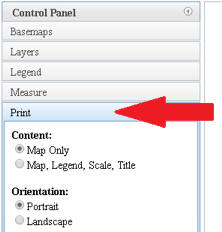
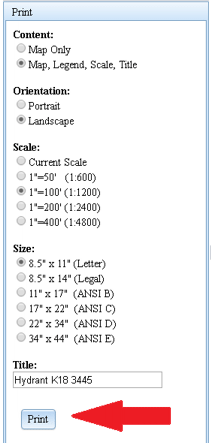
Select the following options and enter an optional Title for the printout, then select the Print button:
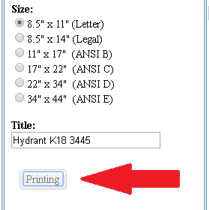
While the printout is being generated, you will see a Printing button appear.
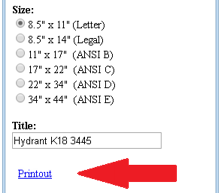
Once the printout is complete, you will see a Printout hyperlink. Click Printout to open the resulting PDF document. You can then print the printout and/or save the file.
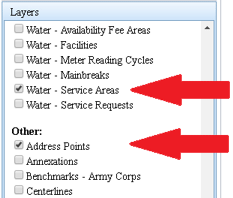
Select the Layers tab.
Check the Water - Service Areas and Address Points layers.
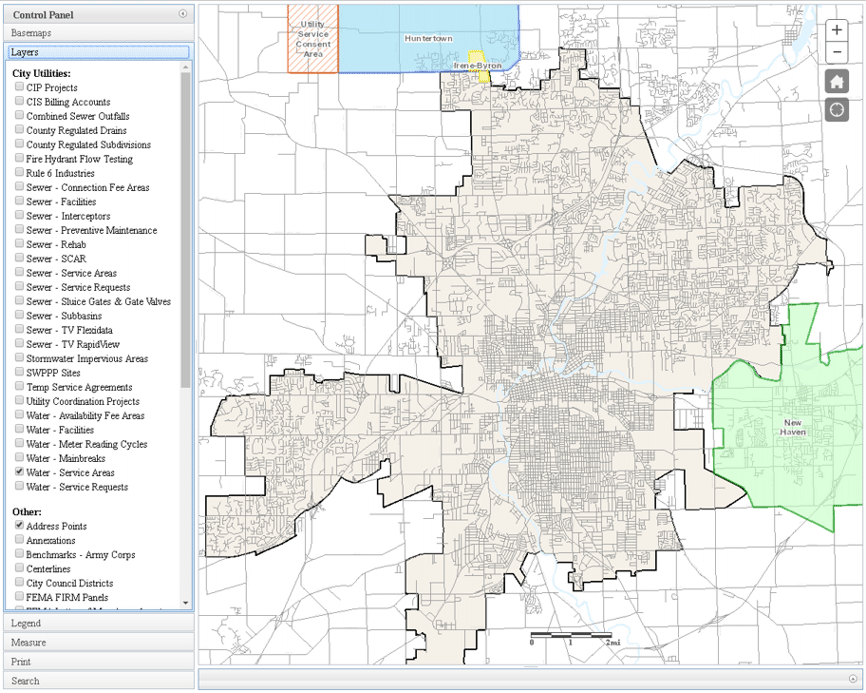
Observe the Water Service Areas display on the map but the Address Points do not. Address points will only display when zoomed in beyond a certain zoom level.
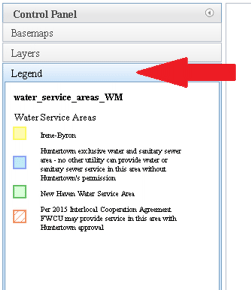
Select the Legend tab. Observe the legend entries for the Water Service Areas.
Select the Search tab.
Pull down the Select a Search Type drop-down, and type ST to filter the list to types starting with ST, then select Street - Name from the list.
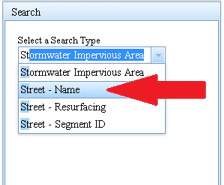
Pull down the Select a Street Name drop-down, and type LIM to filter the list, then select LIMA CROSSING DR from the list.
Note: Only the first few letters of the street name are recommended here. This allows you to pick from a filtered list, thereby minimizing spelling errors.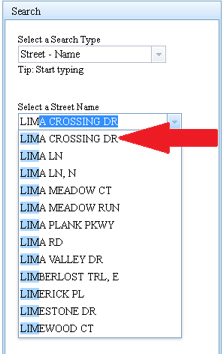
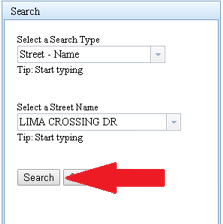
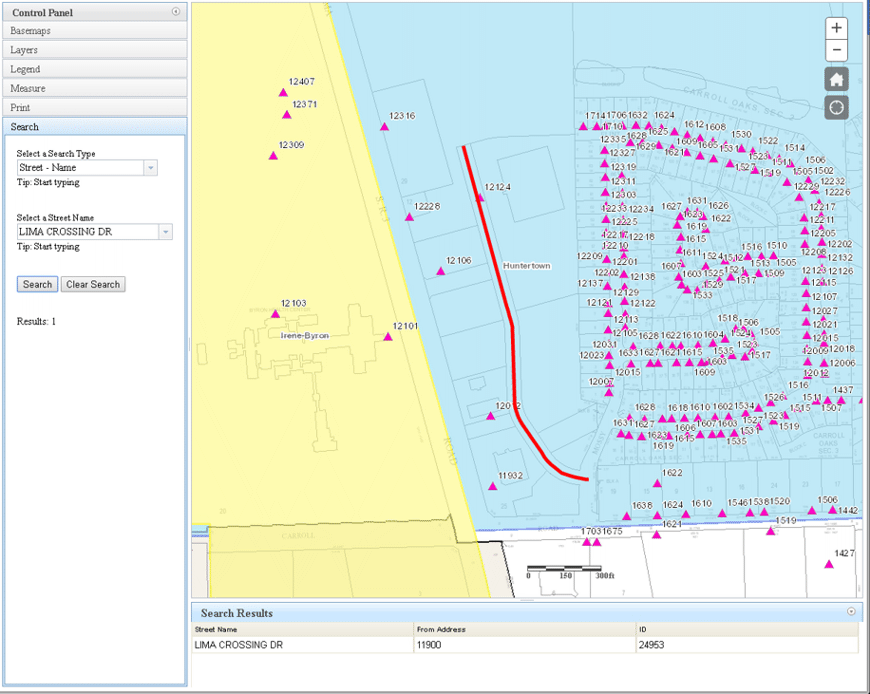
Select the Search button. This will zoom the map to that location.
Zoom in once or twice if necessary to display address points on the map. Observe that each address number is displayed on the map for each address point.
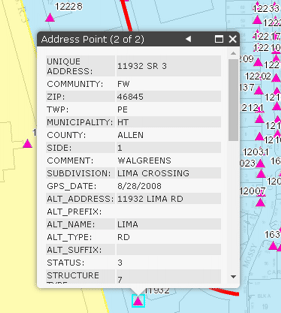
Click on an address point to see details about that location. Observe the arrow
 in the upper right corner of the popup box.
This indicates multiple layers were clicked, and multiple popups are available. Click the arrows to advance through the multiple popups.
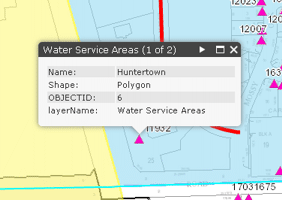
A layer name is also indicated in the upper left corner
in the upper right corner of the popup box.
This indicates multiple layers were clicked, and multiple popups are available. Click the arrows to advance through the multiple popups.
A layer name is also indicated in the upper left corner  of its associated popup box.
The popups will display data about the address point and water service area at that location.
of its associated popup box.
The popups will display data about the address point and water service area at that location.
Select the Search tab.
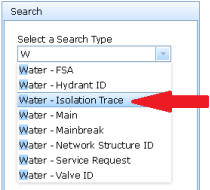
Pull down the Select a Search Type drop-down, and select Water - Isolation Trace from the list.
Enter a water Fitting ID as a start point. This example will use N42 034.
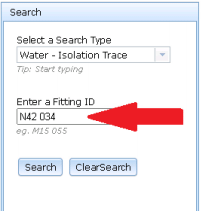
Select the Search button. This will perform the trace, finding the nearest valves to close in order to ISOLATE your start point from the rest of the water distribution system.
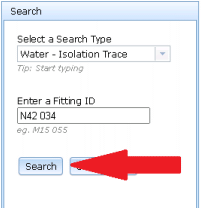
This will also zoom the map to that isolation extent and will display the isolation valves in the Valves tab inside the Search Results frame below the map.
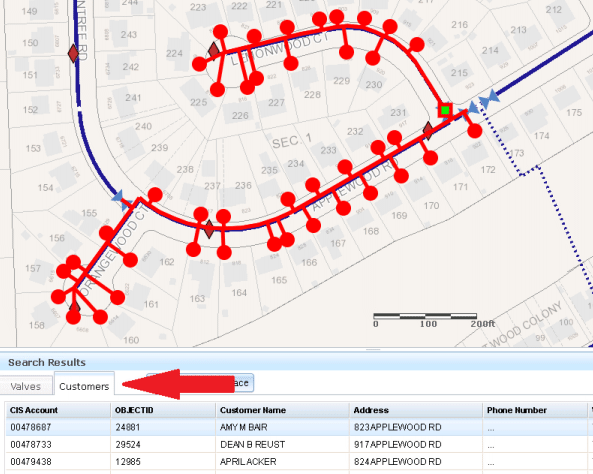
Select the Customers tab in the Search Results frame. This will display a tabular list of all the customer accounts included in the isolation extent, and will display them as graphics on the map.

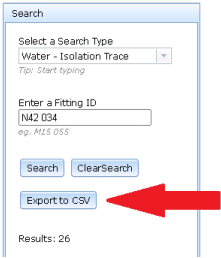
Select the Export to CSV button in the Control Panel. This will export the Customer list (or whichever list is visible) to a CSV file which can be opened in Excel or other applications.
Extending the Water - Isolation Trace: There may be scenarios where users wish to EXTEND an isolation trace through specific valves. For example, users may wish to include a dead-end area (like a cul-de-sac) in the isolation extent, since dead-ends may naturally be isolated from the water source when certain valves are closed. Users can define and control this using these steps:
- Check the Open Valve checkbox next to any valve(s) in the Valves tab from your previous Water - Isolation Trace.
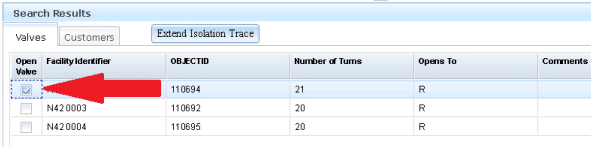
Select the Extend Isolation Trace button to extend the trace through (or skip) those opened (or checked) valves.
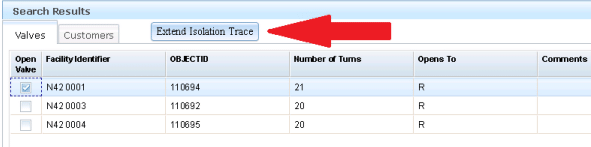
This will show the extended isolation trace extent on the map, and show isolation valves as well as opened valves in the Valves tab. In this example, the cul-de-sac to the north is now included in the isolation extent, since the opened valve (N42 0001, highlighted in green) was traced through as part of extending the trace. Users can extend an isolation trace as many times as needed.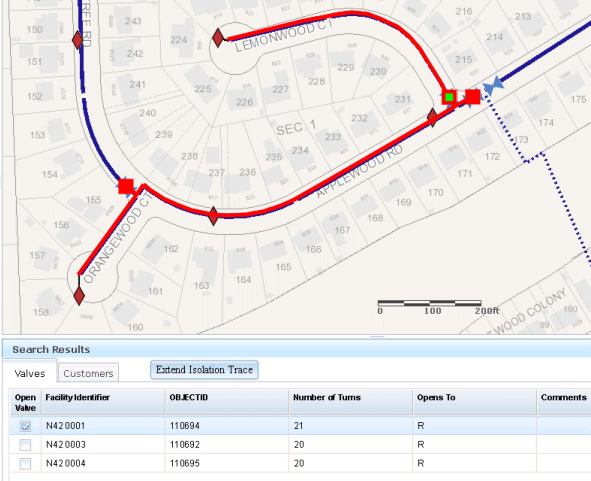
Select the Customers tab to view all customers found within the extended isolation trace extent.
- Check the Open Valve checkbox next to any valve(s) in the Valves tab from your previous Water - Isolation Trace.